
Send applicants from your LinkedIn job post to your Acqoria listing.
You can set your LinkedIn job post's Apply button to send applicants to your Acqoria job link. Choose the external website option while creating the post.
Finding your link
- Open Acqoria admin and sign in.
- Find the job listing you want to advertise.
- Click Copy link on that listing to copy its job link.
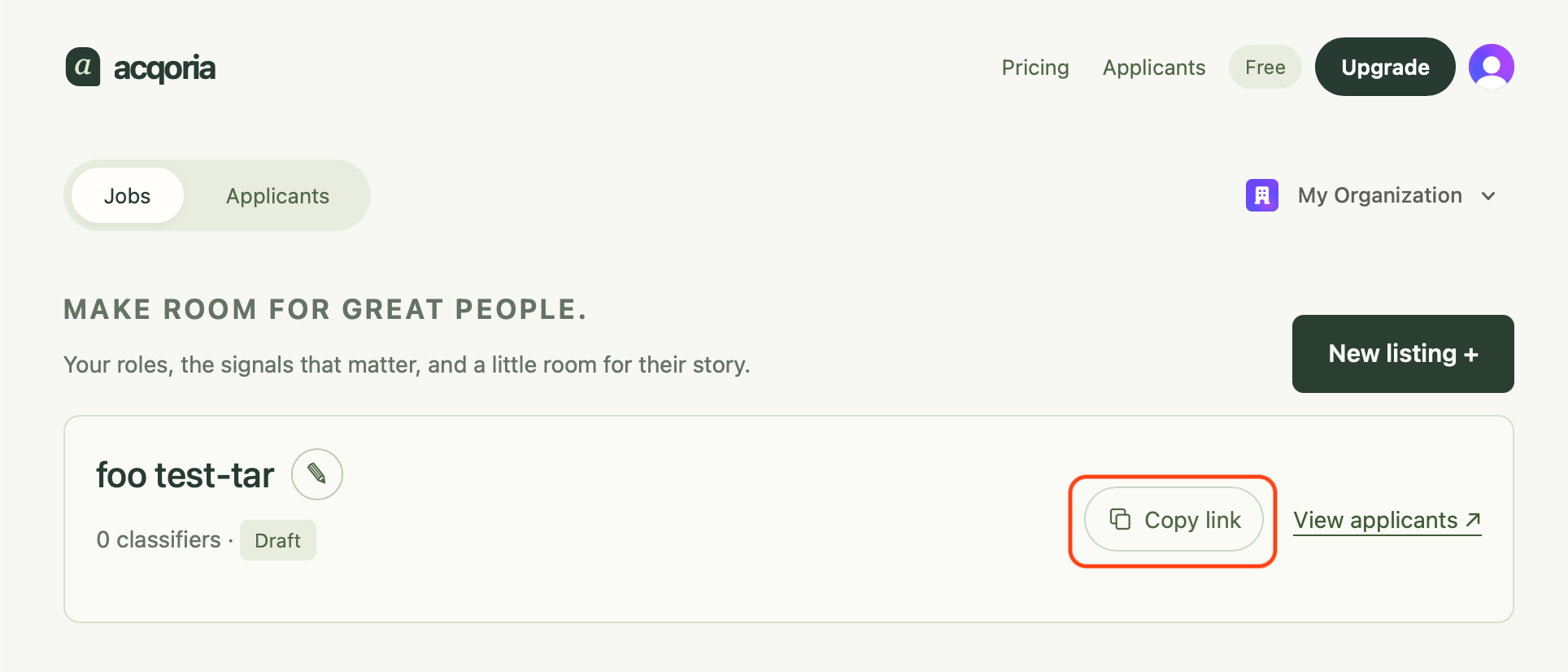
Keep the copied link ready for the website address field in LinkedIn.
Set up your LinkedIn job post
- Open LinkedIn Jobs. Click Post a free job or Post a job, depending on the option shown in your account.
- Enter the job details and description, then click Continue to reach the application settings.
- On the Job settings page, find Manage applicants. Some accounts show a Receive qualified applicants page with an Applicant collection section.
- Choose the option to send applicants to an external website. Depending on your screen, this may be labelled At an external website or Direct applicants to an external site to apply.
- Paste the Acqoria job link you copied into the website address field.
- Check the link and job details, then continue through LinkedIn's remaining posting steps. Review any promotion or payment choices before publishing.
LinkedIn's job posting guide describes the Job settings page. Its applicant options guide describes the Receive qualified applicants page and external website option.
Before you publish
Open the copied link in your browser and check that it leads to the correct Acqoria listing. After publishing, check that the Apply button leads there too.
Choose the external website option before posting. LinkedIn says the applicant collection method cannot be changed after the job is posted.
If External Apply is unavailable, LinkedIn says your account may still be under verification, you to try again in seven business days.
Last updated on