
Jobs
Create a clear job listing, add the signals that matter, and publish when it is ready.
Start every role as a draft. Drafts are visible only to your organisation, so you can take your time before applicants see the listing.
Create the listing
Choose a short, recognisable job title. This is the title your team uses in the jobs and applicants views, so use the name you would put on the advert.
Open Job listing to add the description applicants will read. If the role already appears on another hiring site, copy the existing listing and paste it here. Headings, lists, links, and other formatting can come across with the pasted content. Check the result before saving, especially any tables or complex layouts.
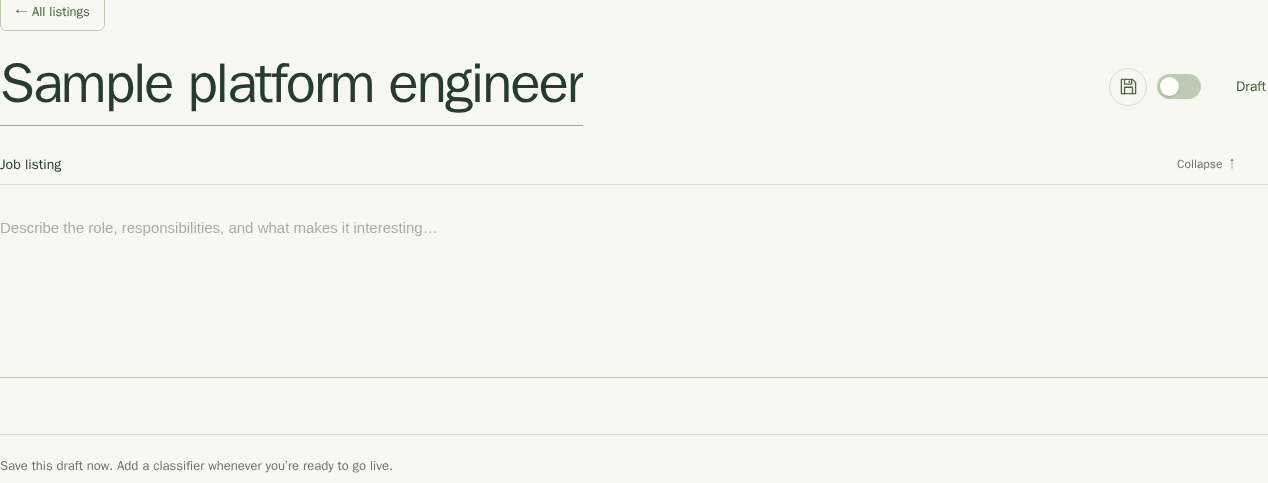
Save the draft once the title and listing are in place. The classifier controls appear after the first save.
Add classifiers
Classifiers describe the evidence you want to review for this role. Add at
least one classifier before making a listing live. You can add them yourself,
or start with the ✦ button beside Save.
The ✦ button reads the job details and suggests relevant classifier ideas.
Add at least 40 characters to the job listing first. Choose an idea to put a
draft into the form, then check its label, question, criteria, and follow-up
questions before you save it. The suggestions are a starting point. Your team
decides what belongs in the role.

Read Classifier types for help choosing the right one.
Publish or return to a draft
Use the Live switch after the listing and its classifiers are ready. A live listing has an applicant link that you can share. Turn the switch off to return the listing to a draft when you no longer want to accept applications.
Changes to a listing do not rewrite the settings saved with applications that already arrived. Those applications keep the role details they were assessed against.
Last updated on