
Applicants
Read application outcomes, review the evidence, and understand confidence and document warnings.
The Applicants page shows submitted applications for your active organisation. Use the search field to find a name or email address, choose a role to narrow the list, and sort columns when you need a different view.
Select the arrow at the end of an applicant row to open their review. It shows the latest result first, with earlier reviews available from Evaluation history.
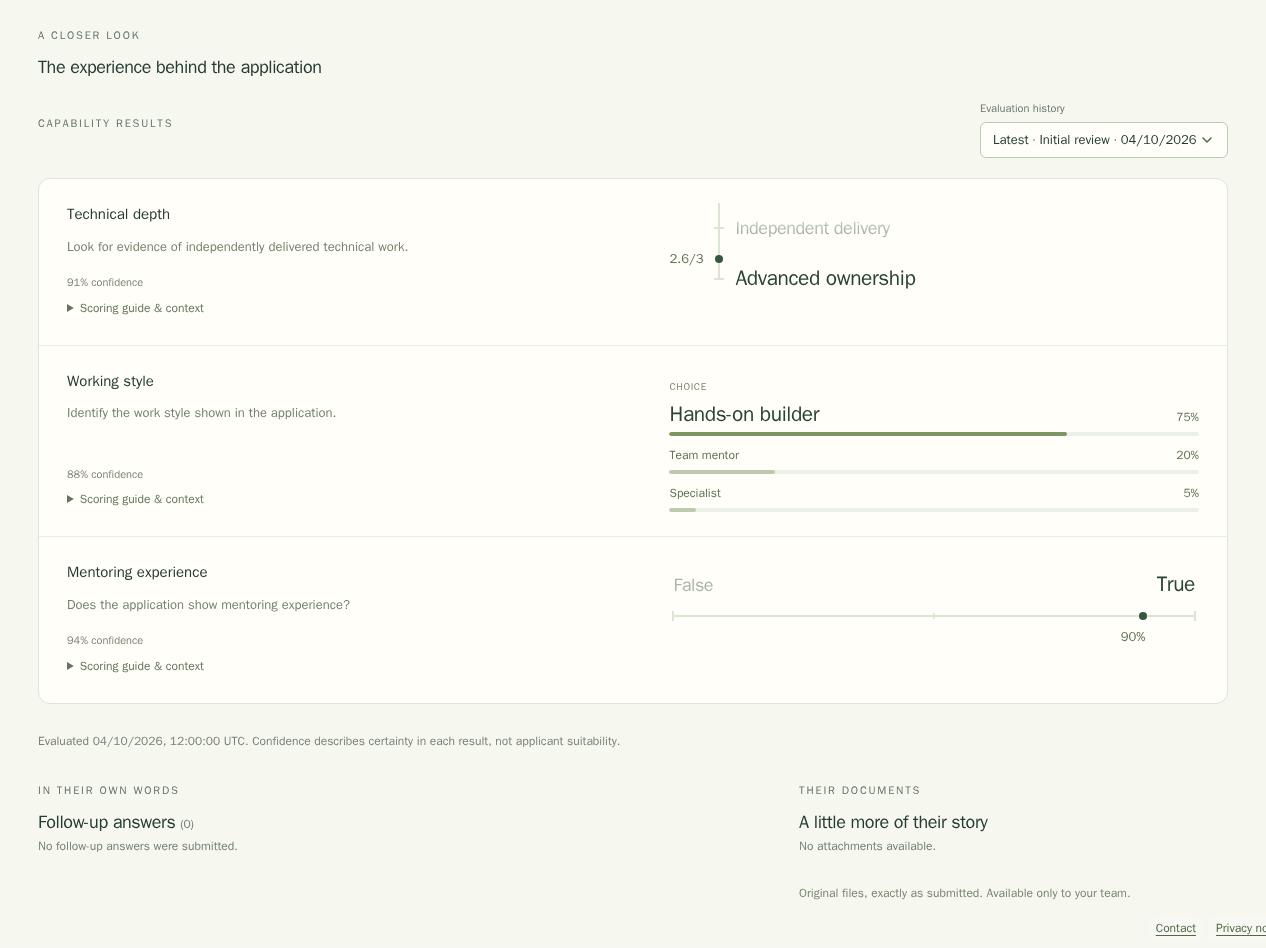
Read the results
Outcomes are the main result. A Score appears against the scale you configured for the role. A Choice shows the matching category and any recorded option probabilities. A Yes / no result shows the recorded true or false outcome, and may show the recorded probability of true.
Confidence is separate from the outcome. It describes how certain the result is, not how suitable the applicant is for the job. "Some uncertainty" in the table means that one or more results have not met the follow-up threshold. Open the application to see which result needs more context.
The detailed view includes the scoring guide and context for each classifier, the applicant's follow-up answers, and links to their original resume and cover letter. Use these together in your review. Overall fit reflects the priorities configured for the role. It does not make a hiring decision.
Check score warnings
An information button beside an overall-fit score can point out something that needs a closer look:
- A red score warns about a possible attempt to hide instructions that could influence an automated review. Open the original documents and read them carefully.
- A yellow score warns about possible keyword stuffing. Check whether the terms are relevant and used naturally in the applicant's experience.
- A blue score identifies an application submitted by a signed-in staff member from your organisation.
These wrappers are review prompts. They do not decide an outcome or replace a conversation with the applicant.
Restricted applications
Some rows can show a lock instead of an applicant's name and details after a plan change. Read Locked applicants to learn why this happens and how access returns.
Last updated on